
AI Face Swap for Group Photos: How to Swap Multiple Faces
Swapping a single face in a photo is straightforward with modern AI tools, but group photos with multiple faces present a different challenge. Each face sits at a different angle, distance, and lighting condition — and the AI needs to handle all of them without distorting the rest of the image. An AI face swap for group photos can now process 2 to 15+ faces in a single image, matching skin tones, adjusting perspective, and blending edges automatically. This guide covers exactly how to do it, which tools handle multi-face swaps best, and how to avoid the common mistakes that make results look artificial.
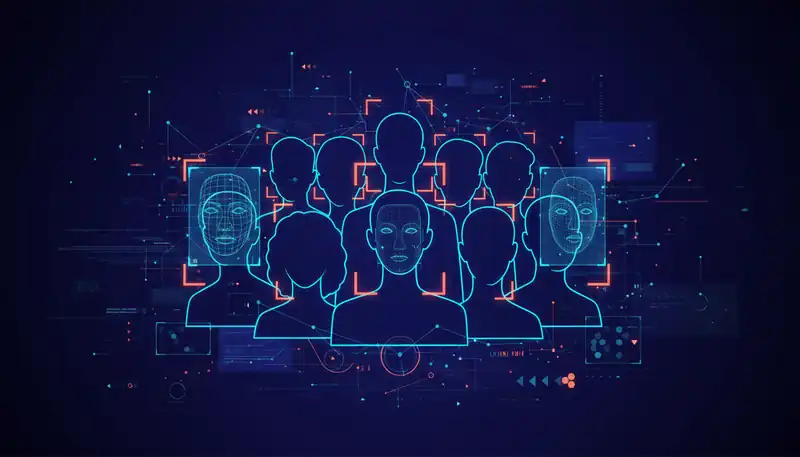
How Multi-Face AI Swap Technology Works
Single-face swap tools detect one face, map its landmarks (68–128 key points around eyes, nose, mouth, and jawline), and replace it with the source face. Multi-face swapping extends this pipeline with three additional stages:
-
Face detection and indexing — the AI scans the entire image and assigns an index to every detected face. Modern detectors like RetinaFace and SCRFD achieve 99.4% detection accuracy on group photos with up to 20 faces, even when some faces are partially occluded or turned at angles up to 60 degrees.
-
Per-face alignment — each detected face is individually aligned to a canonical position. The AI compensates for head tilt, rotation, and scale differences. This step is critical in group photos where people stand at varying distances from the camera, creating 2–5x size differences between the nearest and farthest faces.
-
Selective replacement and blending — the user selects which faces to swap (by index or clicking). The AI replaces only the selected faces while preserving all others. Post-swap blending uses Poisson blending or learned boundary refinement to match lighting gradients across the entire image, ensuring the swapped faces look natural alongside untouched faces.
The entire pipeline runs in 3–8 seconds per face on modern cloud-based tools, meaning a 6-person group photo completes in under 30 seconds.
Step-by-Step Guide: Swapping Multiple Faces
Step 1: Choose Your Tool
Not all face swap tools support multiple faces in a single image. Use a platform with explicit multi-face detection, such as Facing.app, which identifies and labels every face in the uploaded image automatically.
Step 2: Upload the Group Photo
Upload a high-resolution image — minimum 1080p (1920×1080) for group shots. Higher resolution gives the AI more pixel data per face, which directly improves swap quality. For groups of 6 or more people, 4K resolution (3840×2160) produces noticeably better results because small or distant faces retain enough detail for accurate landmark mapping.
Step 3: Identify and Select Faces
After upload, the tool outlines each detected face with a numbered bounding box. Review the detection results:
- Verify all faces are detected — if someone is turned away or heavily occluded, the AI may miss them. Cropping and uploading a tighter frame can help.
- Check face indexing — note which number corresponds to which person. You will reference these indexes when assigning source faces.
Step 4: Upload Source Faces
For each face you want to swap, upload a clear source image of the replacement face. Source images work best when they meet these criteria:
- Front-facing or within 30 degrees of center
- Even lighting with no harsh shadows across the face
- Minimum 256×256 pixels for the face region alone
- Neutral or matching expression — a smiling source face swapped onto a serious target looks uncanny
Step 5: Assign Source to Target
Map each source face to its target face index. For example:
- Face #1 (left person) → Source image A
- Face #3 (center person) → Source image B
- Face #5 (right person) → Source image C
Faces #2, #4, and #6 remain unchanged. Most multi-face tools process all assignments in a single batch operation.
Step 6: Process and Review
Click generate and wait for the AI to process all swaps simultaneously. Review the output at full resolution, paying special attention to:
- Skin tone continuity — the swapped faces should match the lighting temperature of the original photo
- Edge blending — look for visible seams around the jawline and hairline
- Scale consistency — swapped faces should match the proportional size of the original faces
- Expression coherence — the replacement face should not clash with the body language
Step 7: Refine if Needed
If one or two faces look off, re-process only those specific faces rather than the entire group. Iterative refinement produces better results than re-running the full batch because it preserves the blending from the first pass on the faces that already look correct.
Best Tools for Group Photo Face Swaps
| Tool | Max Faces Per Image | Processing Time | Batch Support | Quality Rating |
|---|---|---|---|---|
| Facing.app | 15+ | 3–5 sec/face | Yes | Excellent |
| InsightFace | 10 | 4–6 sec/face | Yes | Very Good |
| Reface | 1 (single face only) | 2 sec | No | Good (single) |
| DeepFaceLab | Unlimited | 10–30 sec/face | Manual only | Excellent (advanced) |
| FaceSwapper.ai | 8 | 5–8 sec/face | Yes | Good |
For most users, a web-based tool with automatic multi-face detection is the best option. Facing.app handles the detection, indexing, and batch processing in a single interface without requiring any software installation.
Common Mistakes and How to Fix Them
Mistake 1: Using Low-Resolution Group Photos
Group photos from social media are often compressed to 720p or lower. At that resolution, faces beyond the first row contain fewer than 100×100 pixels, which is below the threshold most AI models need for accurate landmark detection.
Fix: Always use the original, uncompressed photo. If only a compressed version exists, upscale it with an AI super-resolution tool (Real-ESRGAN or similar) before swapping — this recovers enough detail for reliable face detection at a 2x or 4x scale factor.
Mistake 2: Mismatched Lighting Between Source and Target
A source face photographed under warm indoor lighting will look orange when swapped into a group photo taken outdoors under blue-toned daylight.
Fix: Choose source images with similar lighting conditions, or use the tool's color correction feature to auto-match white balance. Facing.app applies automatic color harmonization that adjusts the swapped face's color temperature to match the surrounding skin tones.
Mistake 3: Ignoring Head Angle Differences
A perfectly front-facing source face swapped onto a target that is turned 45 degrees to the side creates an obvious distortion — the face appears flattened or stretched.
Fix: Use source images that roughly match the target's head angle. For group photos where people face different directions, prepare multiple source images at different angles: one front-facing, one at a slight left turn, and one at a slight right turn.
Mistake 4: Swapping All Faces at Once Without Reviewing Detection
Auto-detection sometimes picks up faces in the background — bystanders, people in picture frames on walls, or faces printed on clothing.
Fix: Always review the face detection overlay before processing. Deselect any false positive detections to prevent unwanted swaps and save processing time.
Quality Optimization Tips
These five adjustments consistently improve multi-face swap results:
-
Match source image resolution to target face size — if the target face occupies a 300×300 pixel area, a 256×256 source face works. But a 2000×2000 source adds no benefit and can slow processing by 40%.
-
Use consistent lighting across all source faces — when swapping 3+ faces, inconsistent lighting between sources makes the result look like a collage. Photograph all source faces under the same lighting setup.
-
Preserve the original aspect ratio — do not crop or stretch the group photo before uploading. The AI relies on spatial relationships between faces for accurate scale matching.
-
Process high-priority faces first — if one face is the focal point (center, foreground), swap it first and verify quality. Then process peripheral faces in a second pass.
-
Export at the original resolution — avoid re-compressing the output. Save as PNG or high-quality JPEG (95+ quality) to preserve the blending details.
Privacy and Ethical Considerations
Multi-face swap technology is powerful and should be used responsibly:
- Get consent — always obtain permission from everyone whose face appears in the photo before swapping.
- Do not create misleading content — face swaps intended to deceive (fake evidence, impersonation) violate platform terms of service and may violate laws in many jurisdictions.
- Label AI-modified content — when sharing publicly, disclose that the image has been AI-modified. Many social platforms now require this disclosure.
- Respect copyright — the original photo's copyright belongs to the photographer. Face swapping does not transfer ownership.
Frequently Asked Questions
How many faces can AI swap in one group photo?
Most modern tools handle 8–15 faces in a single image reliably. Tools like Facing.app support 15+ faces with automatic detection. Beyond 15 faces, detection accuracy drops for small or distant faces. For very large group photos (20+ people), process the image in sections by cropping into sub-groups and swapping each section separately.
Does face swap quality decrease with more people in the photo?
Quality per face depends primarily on the pixel count of each face region, not the total number of people. In a 4K group photo with 10 people, each face still has enough resolution for high-quality swaps. Quality decreases only when individual faces are very small — typically below 128×128 pixels in the original image.
Can I swap faces between two different group photos?
Yes. Upload both group photos, select the source face from one and the target face from the other. The AI handles the lighting, scale, and angle differences between the two photos automatically. This is useful for creating composite group photos where not everyone was present at the same event.
Create Your Perfect Group Photo
AI face swap for group photos makes it possible to create the perfect shot even when someone blinked, looked away, or could not attend the event. With tools like Facing.app that handle multi-face detection and batch processing automatically, you can swap 2, 5, or even 15 faces in a single session. Upload your group photo, select the faces to swap, and let the AI handle alignment, blending, and color matching — the entire process takes less than a minute for most group sizes.